

Does your morning start with an endless scroll of emails? An overloaded inbox can make the day feel overwhelming before it even begins. In this article, I’ll share three simple tips to help you get your email under control.
What’s Ahead
- Create One Folder Per Year
- Create Custom Categories
- Sorting Emails Daily
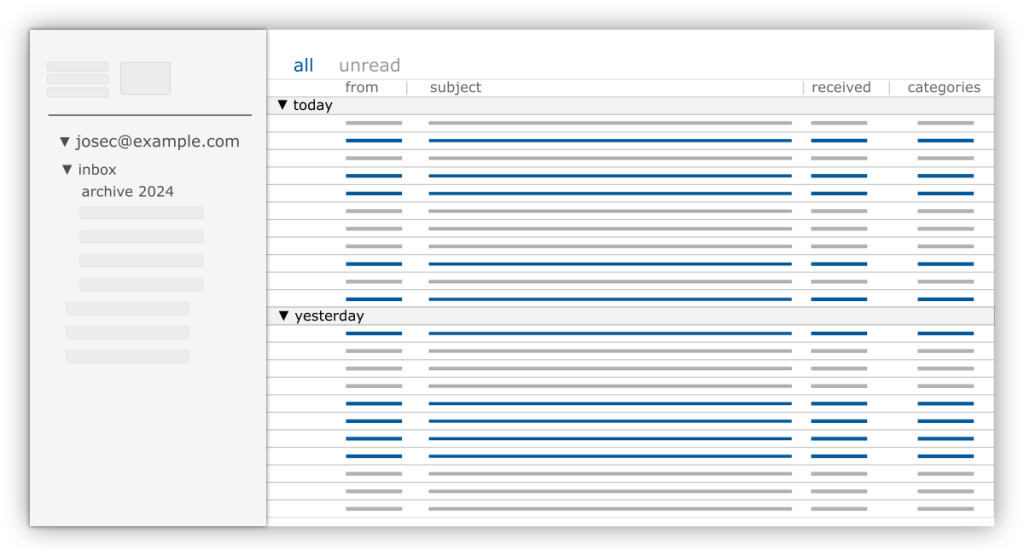
1. Create one folder per year and set the inbox view
In my experience, creating multiple inbox folders for various categories will eventually become overwhelming. However, I discovered that utilizing the search feature in Outlook proved to be the most efficient solution for finding emails quickly and easily. Embracing this method eliminated the need for extensive folder navigation and saved me valuable time in managing my inbox.

Follow the guide below to set the outlook view.
For Outlook Desktop Application (Windows):
- Open Outlook: Launch the Outlook application on your computer.
- Go to the Folder: Navigate to the folder you want to customize (e.g., Inbox, Sent Items).
- Click on the View Tab: In the Outlook ribbon, go to the “View” tab.
- Click on View Settings:
- In the “View” tab, click on “View Settings” in the “Current View” group.
- Select Columns:
- In the “Advanced View Settings” dialog box, click on the “Columns…” button.
- Choose Columns:
- In the “Show Columns” dialog box, you’ll see two lists: “Available columns” on the left and “Show these columns in this order” on the right.
- In the “Available columns” list, scroll down and find each of the following:
- Attachments
- From
- Subject
- Received
- Categories
- For each field, select it and click “Add ->” to move it to the “Show these columns in this order” list.
2. Create custom categories
Another effective strategy I’ve discovered is to establish custom categories and assign distinctive colors to each:
- Complete
- Follow Up
- FYI
- Notes
- Task
- Waiting
This approach allows for precise categorization of incoming emails, aiding in efficient organization and prioritization. Additionally, I frequently utilize flags to highlight items requiring immediate attention or priority handling.
For Outlook Desktop Application (Windows):
- Open Outlook: Launch the Outlook application on your computer.
- Navigate to the Home Tab: Ensure you’re on the “Home” tab in the ribbon.
- Find the Tags Group:
- In the “Home” tab, look for the “Tags” group.
- You’ll see an option called “Categorize.” Click on it.
- Manage Categories:
- A dropdown menu will appear, showing different categories.
- You can select an existing category to apply to an item (like an email, calendar event, or contact).
- To create or edit categories, select “All Categories” from the dropdown.
- In the “Color Categories” dialog box, you can rename, add, or remove categories and change their colors.

3. Sorting emails everyday
A refined approach I’ve adopted involves beginning my day by sorting emails based on their subjects. From there, I streamline my inbox by retaining only the most recent email in each thread before categorizing it appropriately. Additionally, I organize emails by sender and categorize them accordingly.
To facilitate this process, I switch my view to sort emails into categories, ensuring that new emails appear at the top for quick attention. Throughout the day, I consistently apply this method to manage incoming emails efficiently. Once an email is addressed and completed, I promptly move it to a designated folder labeled “Archive 2024,” maintaining a clutter-free inbox.
- Sort emails by Subject
- Keep only the latest email from the subject (Move the rest to Archive 2024 mailbox folder)
- Categorize latest email

If you get emails from the same sender but it’s not the same subject, you can also sort by “From” to move those emails to your Archive folder.
Conclusion
In my email organization approach, efficiency is key—I prioritize action over excessive sorting inspired by principles from the GTD book. Rather than spending excessive time organizing emails, I focus on swiftly addressing and completing tasks. This streamlined method ensures that my time is maximized for productive work rather than getting bogged down in email management.

If you want to learn more about GTD principles, please check out the book “Getting Things Done” by David Allan
Hi, this is a comment.
To get started with moderating, editing, and deleting comments, please visit the Comments screen in the dashboard.
Commenter avatars come from Gravatar.